A man in New South Wales connected his laptop to the Wi-Fi at an airport while travelling overseas, and emailed copies of his passport and birth certificate to his parents. The hotspot was not the airport’s. Someone had set it up, intercepted the documents, and used them to open accounts in his name. He only found out later, when he was chased for more than $7,000 in charges he had never made and found inquiries on his credit report he could not explain. The case is published by the Australian Cyber Security Centre (ACSC).
That story is almost always told as a warning to individuals. Read it again with one detail changed. If the person at that laptop had been one of your staff, the thing intercepted would not have been his passport. It would have been your client’s data.
Public Wi-Fi risks for small businesses are rarely a question of technique. They are a question of who ends up carrying the loss. That second question is what this article is about.
Who actually carries this risk
Most small businesses in Australia have never made a decision about this. It just happened. Someone started working two days a week from home, then from a café, then from a co-working desk. They used their own laptop, because that was quicker than buying another one. And the accounts they signed into from that laptop were not theirs.
Picture what is actually open in those browser tabs:
- A social scheduling tool holding the authorisations for three client accounts
- An ad platform with the company card saved against it
- An inbox with signed contracts and a full client contact list
- A shared drive with campaign assets that have not been published yet
None of that belongs to the person sitting in the café. If those credentials are captured, your employee loses a password, while you lose a client’s trust. While many small business owners assume securing off-site devices requires an enterprise security budget, even equipping staff laptops with a reliable free VPN gives team members an immediate layer of encryption for those browser sessions.
What can actually happen on an open network?
It is worth being precise here, because the topic attracts a lot of exaggeration, and staff stop listening to warnings that turn out to be overblown.
Someone nearby can see more than you think
Most sites your team uses are encrypted in transit, so a stranger on the same network cannot simply read the contents of a logged-in session. That part of the scare story is dated. What they can often still see is which services a device is talking to, and anything that travels unencrypted — which, on a laptop with a few older apps or background tools on it, is more than most people assume.
The network itself can be fake
This is the mechanism behind the ACSC case above. A network with a plausible name and a strong signal is easy to stand up, and nothing on a phone or laptop distinguishes it from the real one. Worth saying plainly to your team: a password does not mean a network is safe. When the password is chalked on a board behind the counter, everyone in the room has it.
The sign-in page is the weak point
In July 2026, Microsoft published findings on a campaign it tracks as CaptiveCrunch, in which attackers manipulated DNS and HTTP traffic on compromised captive portal networks at hotels and conference venues. Visitors were served fake Microsoft 365 sign-in prompts, device code phishing pages, and bogus software update pages that delivered malware designed to collect browser cookies, saved passwords and session tokens.
The detail that matters for a small team is this: the venue’s own sign-in page was the attack surface. Not a suspicious hotspot in the corner — the network everyone in the building was told to join.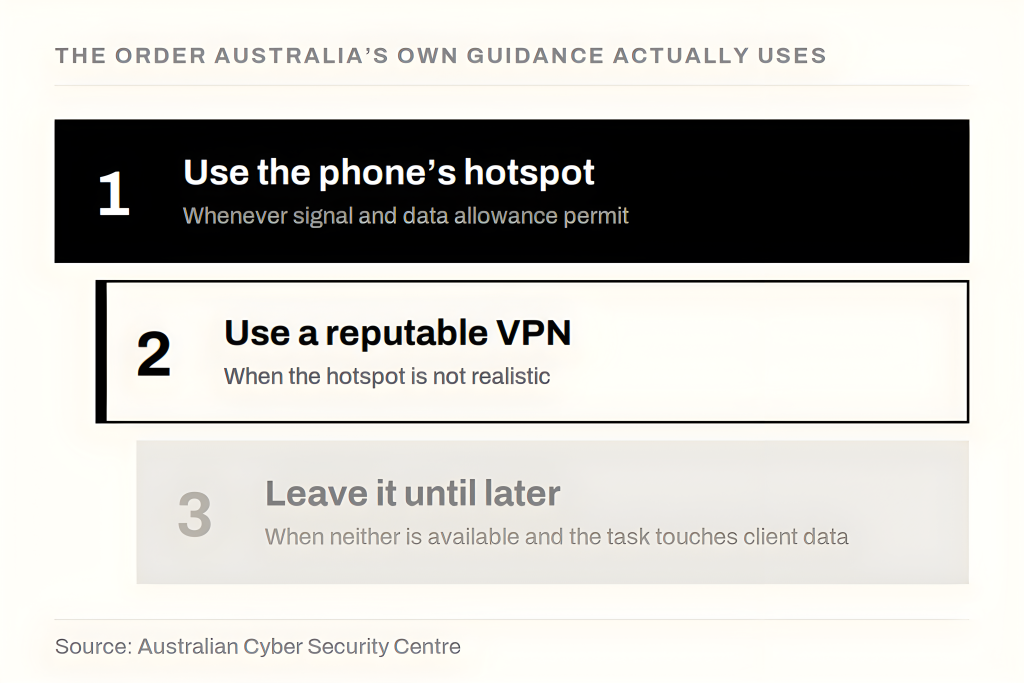
Here is where most articles on this topic get the order wrong. Almost every one of them arrives at the same conclusion: install a VPN, and you are sorted.
That is not what Australia’s own guidance says. On remote working, the ACSC’s wording is to “use and maintain a secure connection and avoid public Wi-Fi,” and only then adds that, depending on your workplace requirements, you could also use a VPN. On its public Wi-Fi page the advice is firmer for people who are out often: “install and use a reputable VPN service on your device.” For remote staff across Sydney or Melbourne, using a fast free VPN for Australia service ensures local routing without sacrificing internet performance when public Wi-Fi is unavoidable.
Read together, that is a ladder, not a single instruction:
| Priority | What to do | When it applies |
| 1 | Use the phone’s hotspot | Whenever signal and data allowance permit |
| 2 | Use a reputable VPN | When the hotspot is not realistic |
| 3 | Leave it until later | When neither is available and the task touches client data |
Now the honest part, which the ladder alone does not tell you: step one fails constantly. Basement conference rooms have no signal. A day of video calls will finish a travel data allowance before lunch. Somebody on the team is always near the end of their billing cycle. The second step exists because the first one is not reliable in practice — not because it is better.
Cyber security tips for remote workers: the one-week version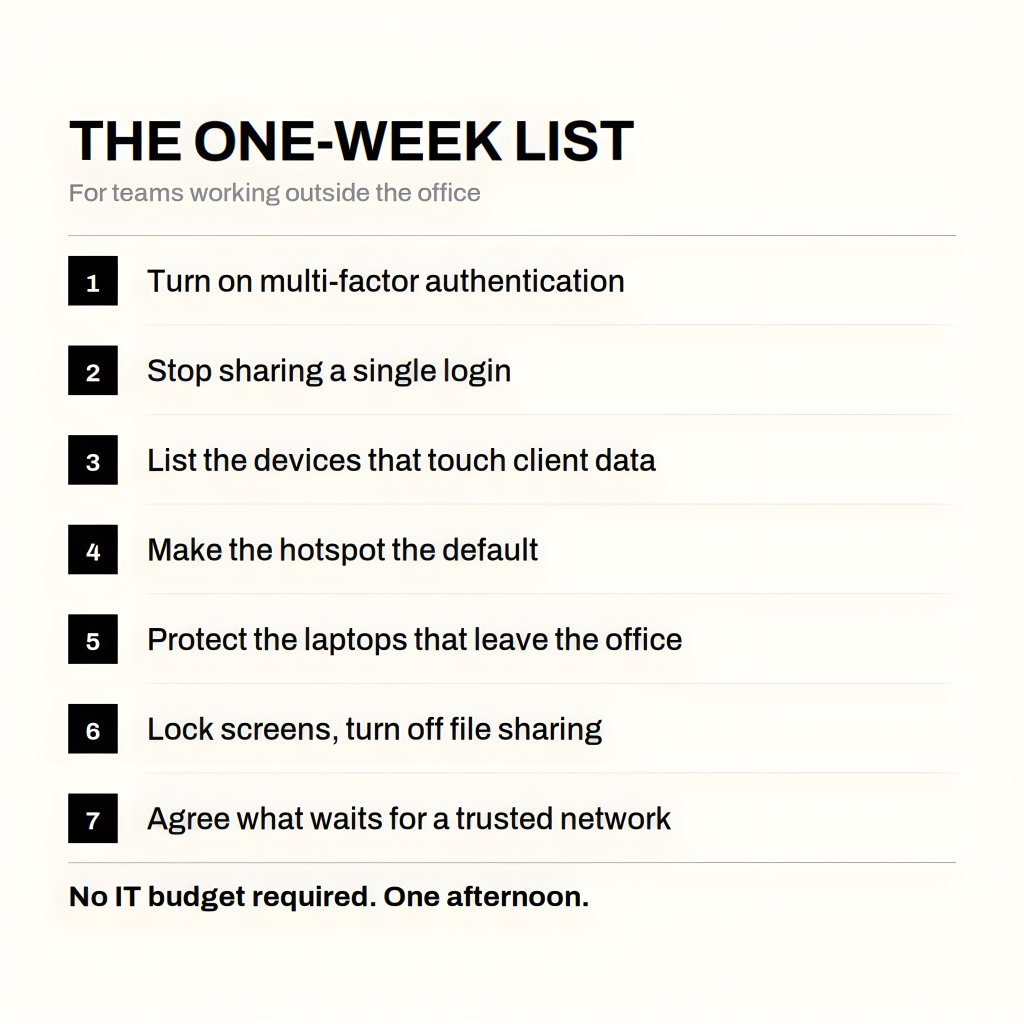
None of the following needs an IT budget, and the whole list is an afternoon’s work.
- Turn on multi-factor authentication for every work account. Both ACSC pages put this first, ahead of anything to do with networks. If you only do one thing, do this one.
- Stop sharing a single login. Use the team permissions each platform already gives you — Business Manager roles on social tools, user roles in ad accounts. One shared password is one resignation away from a problem.
- Write down which devices touch client data. This is a bring your own device audit, and it takes ten minutes on paper. The ACSC publishes guidance on BYOD that almost no small business knows exists.
- Make the phone hotspot the default, not the fallback. Reimburse the data. It is cheaper than the alternative and it removes the decision from the moment someone is in a rush.
- Put protection on the devices that leave the office. The laptops that go to cafés, airports and client sites are the ones that need it — see the next section for how to choose.
- Lock screens and turn off file sharing. Both are one-time settings, and both are on the ACSC’s list.
- Agree on what does not get opened on a shared network. Reading email and changing a client’s account permissions are not the same level of risk. Say out loud which tasks wait until the team is on a trusted connection.
Hotel and conference Wi-Fi on business travel
Hotel Wi-Fi deserves its own note, because the risk profile is different from a café and most people assume it is safer.
The difference is time. A café visit is twenty minutes. A conference trip puts your laptop on the same network for three to five days, alongside a group of people who were pre-selected by the event they came to attend. That is a far more attractive target, and the CaptiveCrunch findings show it is one attackers are actively working on.
Three things worth doing before the next trip:
- Set up the hotspot and confirm it works before leaving, not in the lobby at 11pm
- Look at the domain on any sign-in page the network sends you to, and treat an unexpected request to re-enter Microsoft or Google credentials as a reason to stop
- Tell the device to forget the network on checkout, so it does not reconnect on the next visit
How to choose a VPN, using the ACSC’s own checklist
The ACSC does not recommend a provider. It gives you a test, and it is a good one — research the company, and know “their privacy policy, how they store information, and if they share it,” then read independent reviews before deciding.
That is four questions you can put to any provider:
| What the ACSC says to check | What to actually look at |
| Privacy policy | Is there a published no-logs policy, on the site, in plain language? |
| How they store information | Are the servers RAM-only, so nothing is written to disk? |
| Whether they share it | Is there a public transparency report? |
| Independent reviews | Has the no-logs claim been independently audited, or only asserted? |
To take one provider you can run through that list: X-VPN publishes a no-logs policy that has been independently audited, runs RAM-only servers, and uses AES-256-GCM. Its free vpn tier needs no sign-up and has no data cap, which is the practical point for a small team — you can put it on the laptops that leave the office this week, before anyone approves a line in next year’s budget.
One caveat, and it is the reason this section sits sixth rather than first: a VPN protects data in transit. It will not switch on multi-factor authentication for you, and it will not stop someone typing a password into a convincing fake sign-in page.
FAQs
Is public Wi-Fi safe if I use a VPN?
Safer, not solved. A VPN means others on the same network cannot read your traffic. It does nothing about a fraudulent sign-in page, which is exactly how the hotel campaign above worked. Pair it with multi-factor authentication and treat them as two separate jobs.
Does a free VPN do the job for a small business in Australia?
For the specific job of adding a layer of protection when staff are working outside the office, yes. The thing to assess is whether the provider is transparent about the four questions above, not whether there is a price tag. If you want to see what a free vpn australia option looks like in practice, X-VPN’s free tier includes Australian locations in Sydney and Melbourne on both desktop and mobile — so a Sydney-based team is not routed to the other side of the world just to get an encrypted connection.
Can my staff use public Wi-Fi for work?
The useful question is not whether, but for what. Reading a newsletter and changing permissions on a client’s ad account sit at opposite ends of the scale. Decide where your line is, write it in one sentence, and tell people.
Is hotel Wi-Fi safer than café Wi-Fi?
No. The longer stay makes the exposure window bigger, and hotel and conference networks have been specifically targeted.
Final Thought
You do not need to become a security specialist to run a small business well. You need to know which parts of this are yours.
Three of them are. Turn on multi-factor authentication across the accounts your team shares. Make the phone hotspot the normal way to work outside the office, and pay for the data. Put protection on the laptops that leave the building, chosen against the four questions above rather than a review site’s ranking.
The rest is detail. Those three cover the cases that actually put a client’s data on someone else’s network.